In the app
- ☰ Menu → Items & Inventory (or "Items" in Home → Quick Actions).
- Tap "Add Item / Service".
- Fill "Item / Service Name *", pick the "Unit" (Bag, Piece, Ton, Litre …) and type "Rate (₹) *" — the selling price.
- Add "Purchase Price (₹)" (your cost — needed for the profit report), "Category", "Barcode / SKU", "GST %" and "HSN Code".
- For a new item put the "Opening Stock" you have today, and a "Min Stock Alert" level.
- Tap "Add Item / Service". You see "Item added."
On the website
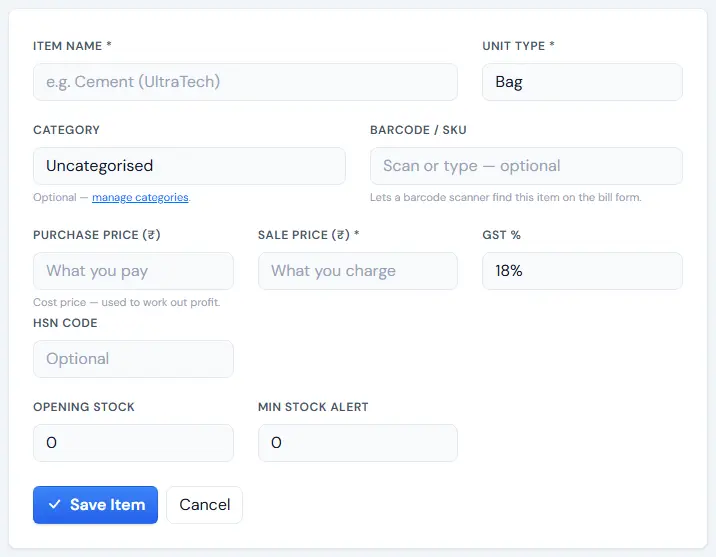
- Sidebar "Items & Inventory" → "Add Item".
- Fill "Item Name *", "Unit Type *", "Sale Price (₹) *", "Purchase Price (₹)", "GST %", "HSN Code", "Opening Stock" and "Min Stock Alert".
- Click "Save Item".
Tip: Selling a service (labour, cutting, fitting)? Add it as an item with "Opening Stock" 0. You can also type a brand-new item straight in Quick Bill with "New item / service".
If something goes wrong
- The unit you need is not in the list — add it in Unit Types (Units and categories).
- "You do not have permission to create new items." — ask the owner for the "Add & edit items" permission.
